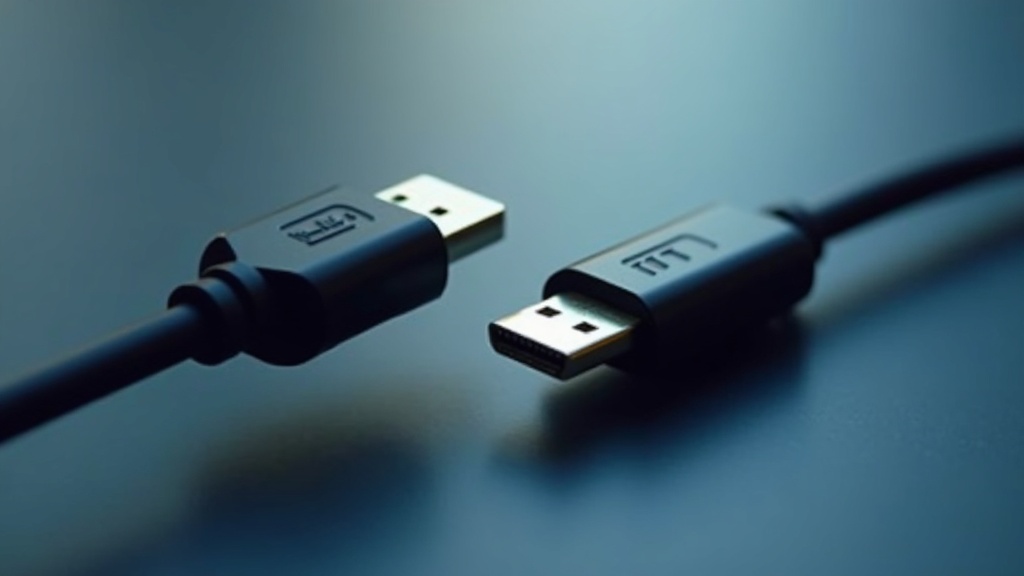
USB and HDMI Cable Guide: Choosing the Right Connection
Learn how to choose between a USB and HDMI cable for your devices. This guide covers key differences, performance specs, and practical tips to help you select the right connection for displays, data transfer, and charging.
Table of Contents
- Core Differences Between USB and HDMI Cables
- Performance and Bandwidth: Speed and Resolution
- Connector Types and Compatibility
- Choosing the Right Cable for Your Setup
- Frequently Asked Questions
- Comparison: USB vs. HDMI at a Glance
- Practical Tips for Cable Selection
- Key Takeaways
A USB and HDMI cable serve different primary functions: USB handles data, power, and increasingly video, while HDMI specializes in high-definition audio and video. This guide explains their technical specs, connector types, and how to choose based on your device needs.
- The global USB and HDMI cable market is estimated at 15 billion US dollars in 2025 (Market Research Forecast, 2025)[1]
- HDMI 2.1 supports a maximum bandwidth of 48 Gbps, enabling 4K video at 120 Hz or 8K at 60 Hz with HDR (Anker, 2025)[2]
- USB4, which uses USB-C connectors, can deliver data transfer speeds up to 40 Gbps (Anker, 2025)[2]
When setting up a home office, entertainment center, or industrial control system, the choice between a USB and HDMI cable often determines how well your devices communicate. Each standard was designed for different tasks, but modern iterations have blurred the lines. Understanding their core strengths helps you avoid compatibility headaches and get the best performance from your equipment.
Core Differences Between USB and HDMI Cables
The fundamental difference between a USB and HDMI cable lies in their original design purpose. USB (Universal Serial Bus) was created to connect peripherals like keyboards, mice, and storage devices to a computer, handling data transfer and power delivery. HDMI (High-Definition Multimedia Interface) was built specifically to transmit uncompressed high-definition video and multi-channel audio from a source to a display.
As the Anker Technical Team explains, USB-C is a newer, more versatile port that can carry power, data, and video signals, while HDMI is an older port dedicated mainly to carrying high-definition video and audio signals
(Anker, 2025)[2]. This distinction remains crucial: a standard USB cable cannot replace an HDMI cable for a television, and an HDMI cable cannot connect a printer to a laptop.
That said, the rise of USB-C and USB4 has created significant overlap. Many modern laptops use USB-C ports that can drive external monitors, transfer files, and charge the device simultaneously. This convergence makes the selection process more nuanced, especially for users who need a single-cable solution for their desk. For mining and tunneling operations that rely on ruggedized connectivity, understanding these differences ensures that video feeds from inspection cameras and data logs from sensors are transmitted without signal degradation.
Performance and Bandwidth: Speed and Resolution
Bandwidth is the key metric when comparing performance between a USB and HDMI cable. HDMI has consistently pushed higher bandwidth to support increasing video resolutions. The HDMI 2.1 specification supports a maximum bandwidth of 48 Gbps, enabling 4K video at 120 Hz or 8K at 60 Hz with HDR (Anker, 2025)[2]. Looking ahead, the HDMI Forum states: The HDMI 2.2 specification doubles the maximum throughput to 96 Gbps, enabling support for resolutions up to 16K at 60 Hz and higher frame rates at 4K and 8K
(Mordor Intelligence, 2025)[3].
On the USB side, data transfer speeds vary by generation. Standard USB 3.0 cables support speeds up to 5 Gbps, while USB 3.1 and 3.2 can reach 10 and 20 Gbps respectively (CompAndSave, 2025)[4]. The latest USB4 standard, using USB-C connectors, can deliver data transfer speeds up to 40 Gbps (Anker, 2025)[2]. This puts USB4 in the same league as HDMI 2.0 for video transmission, though HDMI still leads for uncompressed high-frame-rate 4K and 8K content.
For professionals working with large data sets, such as geological survey files or high-resolution grout monitoring footage, choosing the right cable speed directly impacts workflow efficiency. Slower USB standards can create bottlenecks when transferring terabytes of data from field sensors to analysis workstations.
Connector Types and Compatibility
Connector shape and pin configuration determine whether a USB and HDMI cable will physically fit your devices. HDMI uses a distinct 19-pin trapezoidal connector that comes in standard, mini, and micro sizes. USB connectors are more varied: Type-A (the rectangular connector found on most computers), Type-B (square, used for printers), Micro-USB, and the increasingly dominant USB-C.
USB-C is reversible and compact, making it the connector of choice for modern laptops, tablets, and smartphones. Its ability to carry DisplayPort and HDMI signals via alternate mode means a single USB-C port can replace multiple dedicated ports. However, not all USB-C cables support video output; users must check for compatibility with DisplayPort Alt Mode or Thunderbolt 3/4 standards.
Compatibility also extends to cable generation. A USB 3.0 cable will work in a USB 2.0 port, but only at USB 2.0 speeds. Similarly, an HDMI 2.1 cable is backward compatible with HDMI 1.4 devices but will not deliver 4K at 120 Hz unless both source and display support HDMI 2.1. For industrial environments where HDMI cables for laptops are used to connect to monitoring displays, verifying the cable version against the hardware specs prevents signal dropouts during critical operations.
Choosing the Right Cable for Your Setup
Selecting between a USB and HDMI cable depends on what you are connecting. For a television, projector, or gaming monitor, an HDMI cable is the standard choice because it carries both high-definition video and audio in one line. For connecting a smartphone to a laptop for file transfer or charging, a USB cable is necessary.
When you need to connect a modern laptop to an external monitor, a USB-C cable with DisplayPort Alt Mode can serve as a single-cable solution that carries video, data, and power. This simplifies desk setups and reduces cable clutter. However, for the highest video quality, especially at 4K 120 Hz or 8K, a dedicated HDMI 2.1 cable remains the most reliable option.
The CompAndSave Editorial Team notes: USB cables offer flexibility for data transfer, charging, and connecting various peripherals, while HDMI cables are great for high-definition video and audio, making them perfect for TVs and gaming consoles
(CompAndSave, 2025)[4]. This advice holds true for most consumer and professional applications. For specialized industries like mining, where rugged cables must withstand vibration and moisture, selecting the appropriate connector and shielding is as important as the protocol itself. A mismatched cable can lead to data corruption or display flickering that compromises safety monitoring.
Important Questions About USB and HDMI Cable
Can I use a USB cable instead of an HDMI cable for my monitor?
Is HDMI better than USB for video quality?
Do all USB-C cables support video output?
What is the maximum length for a USB or HDMI cable?
Comparison: USB vs. HDMI at a Glance
Understanding the key differences helps you make an informed decision. The table below summarizes the primary characteristics of each cable type.
| Feature | USB Cable (USB-C/USB4) | HDMI Cable |
|---|---|---|
| Primary Use | Data transfer, charging, peripherals | High-definition video and audio |
| Max Bandwidth | Up to 40 Gbps (USB4) | Up to 48 Gbps (HDMI 2.1), 96 Gbps (HDMI 2.2) |
| Video Support | Yes (via Alt Mode) | Native, uncompressed |
| Audio Support | Yes (via Alt Mode) | Native, multi-channel |
| Power Delivery | Up to 240W (USB PD 3.1) | No (separate power needed) |
| Connector Types | Type-A, Type-B, USB-C, Micro-USB | Standard, Mini, Micro HDMI |
Practical Tips for Cable Selection
Choosing the right USB and HDMI cable involves more than just matching the connector shape. Follow these actionable tips to ensure reliable performance.
- Match the cable version to your device: Using an HDMI 1.4 cable with an HDMI 2.1 source will limit you to 4K at 30 Hz. Always check which version your devices support and buy cables that meet or exceed that specification.
- Consider cable length carefully: For runs longer than 15 feet for HDMI or 10 feet for USB 3.0, look for active cables or signal boosters. Longer passive cables can cause signal degradation, leading to flickering displays or slow data transfer.
- Invest in certified cables: Look for HDMI Premium Certified or USB-IF certified cables. These have been tested to ensure they meet the advertised specifications, reducing the risk of compatibility issues.
- Plan for future upgrades: If you are buying cables for a new setup, consider HDMI 2.1 or USB4 cables even if your current devices only support older standards. This future-proofs your investment for upcoming hardware upgrades.
Key Takeaways
Choosing between a USB and HDMI cable comes down to your specific use case. USB cables excel at data transfer, charging, and peripheral connectivity, while HDMI cables are the gold standard for high-definition video and audio. Modern USB-C and USB4 standards have blurred these lines, offering single-cable solutions for many laptop setups. By understanding bandwidth requirements, connector types, and cable generation, you can select the right connection for your devices. For more guidance on selecting the right cable for your specific needs, check out our sample page for additional resources on connectivity solutions.
Useful Resources
- USB and HDMI Cable Market Size, Share & Growth. Market Research Forecast.
https://www.marketresearchforecast.com/reports/usb-hdmi-cable-507571 - USB-C vs HDMI: Which to Choose for Connecting a Monitor?. Anker.
https://www.anker.com/blogs/hubs-and-docks/usb-c-vs-hdmi - HDMI Market Size, Share, Growth & Industry Trends Report. Mordor Intelligence.
https://www.mordorintelligence.com/industry-reports/hdmi-market - USB vs HDMI Cable: Which Connector Should You Use?. CompAndSave.
https://www.compandsave.com/help/articles/360057266491/what-is-the-difference-between-usb-and-hdmi-cables-